
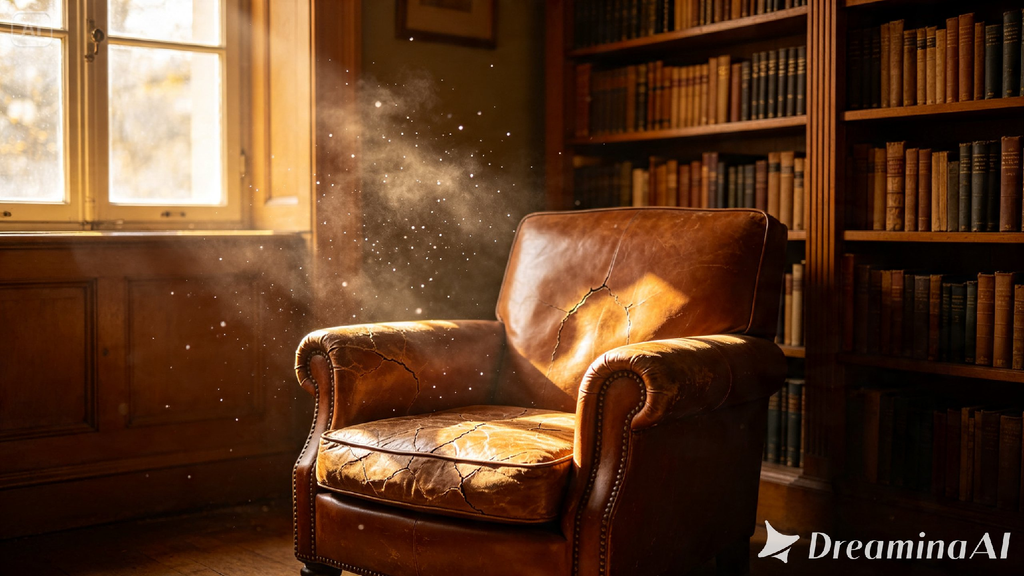
A great interior render isn’t about furniture placement, it’s about the light falling across a room at exactly the right hour. Text to video tools have gotten good enough now that mood alone can carry a scene, and Dreamina’s Seedance 2.5 handles that kind of atmosphere better than most models built for straightforward object rendering. If you’ve ever wanted a space to feel lived-in before it exists anywhere but your imagination, this is where to start.
Why atmosphere matters more than accuracy
A technically correct room can still feel flat if the lighting or mood is off. What actually sells an interior scene is the small stuff, how shadows fall across a wall, whether the light feels like morning or late evening, if a room looks warm or a little melancholy. Chasing atmosphere first tends to produce a far more convincing render than chasing furniture accuracy ever does.
Picking a mood before you pick a room
Starting with “living room” gives a model almost nothing to work with. Starting with a feeling gives it somewhere to go. A few moods that render particularly well:
- A quiet, rain-soaked evening with warm lamp light
- An early morning space with cool light and long shadows
- A cluttered, lived-in room that feels like someone just stepped out
Decide the mood first, then let the furniture and layout follow from it. Rooms designed around a feeling almost always look more real than ones designed around a floor plan.
What a strong interior prompt actually names
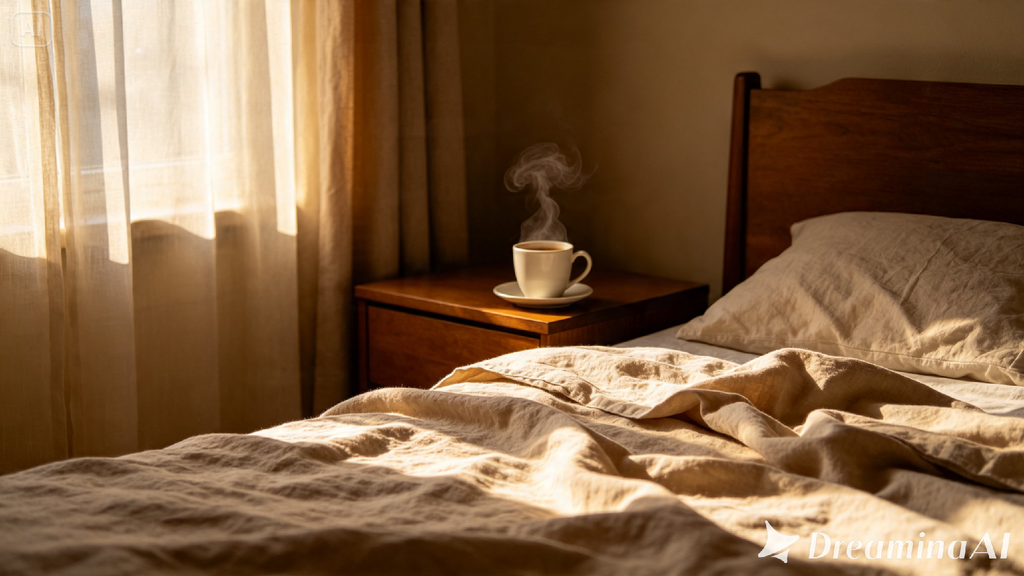
Vague prompts produce generic boxes with furniture in them. A prompt built for atmosphere names the time of day, the light source, the material finishes, and something slightly imperfect, a coffee cup left on a table, a curtain caught mid-sway. That kind of specific, small detail is often what makes a render feel like a real place instead of a showroom.
Your three-step path to a finished interior render
Step 1: Enter your prompt and add a reference if you have one
Head over to Dreamina’s AI Video section. Got a photo close to what you’re picturing? Upload it through “Add reference image” and build from there. If you’re working purely from text to video, skip that and describe the scene in detail instead.
Here’s an idea for a scene: A small kitchen at dusk, warm pendant light hanging over a wooden table, steam rising from a mug beside an open cookbook, rain visible through the window behind, soft shadows stretching across the tile floor, quiet and homey mood.
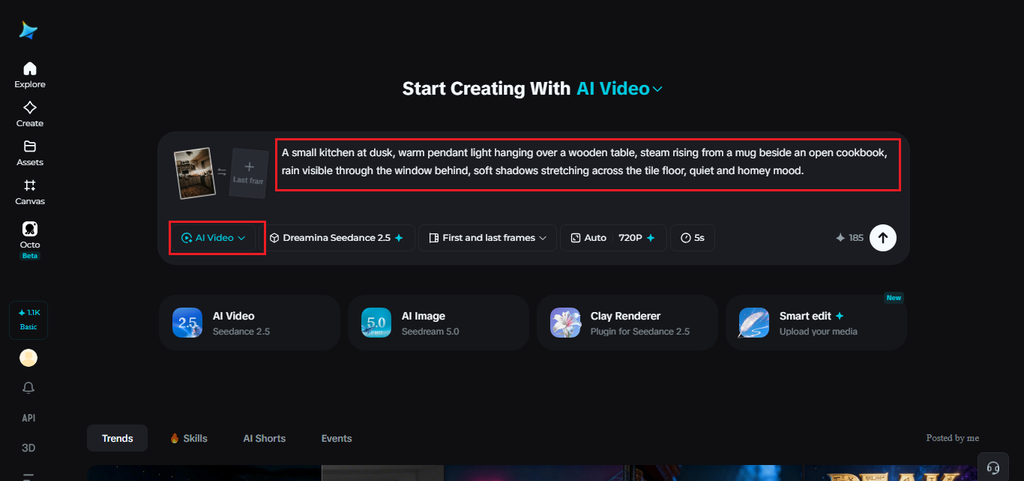
Step 2: Choose Seedance 2.5 and generate
Select Seedance 2.5 once your prompt is ready, since it’s built to handle this kind of subtle, atmospheric detail well. Pick a length that fits the moment, then an aspect ratio, 9:16 works well for social platforms, 16:9 for anything meant to feel more like a short film. Generate and give it a few seconds to render.
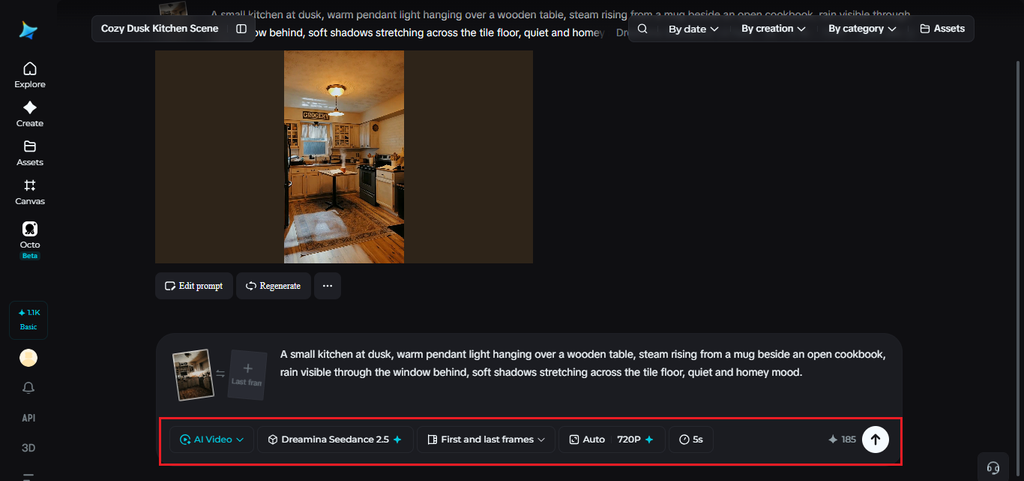
Step 3: Refine the details and export
Once the clip comes back, look closely before finishing up. Upscale sharpens fine texture that might look soft, like water droplets or fabric grain, and Generate soundtrack can add something subtle underneath, like ambient rain or distant traffic. Export it once it feels right and share it wherever it’s headed.
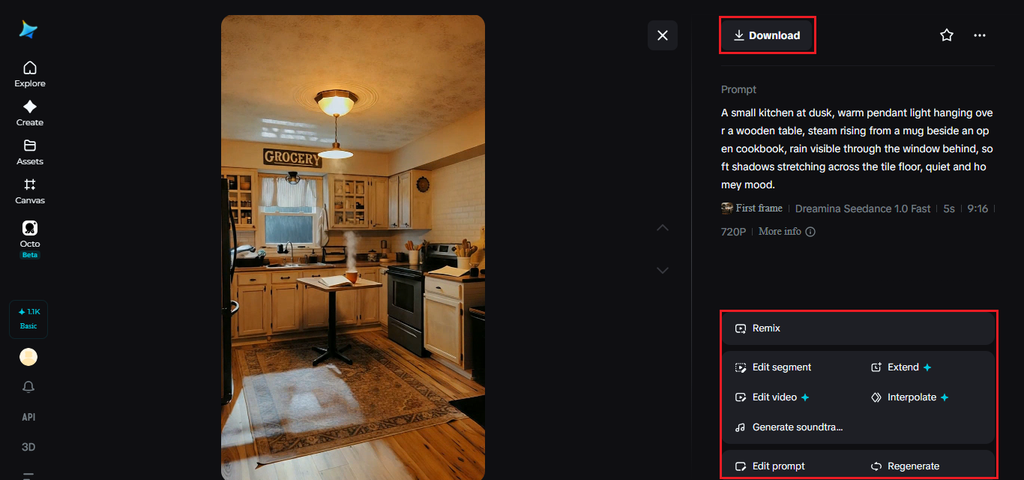
Meet Seedance 2.5, the model reading the room
What makes Seedance 2.5 particularly good at interiors is how it treats light as its own subject rather than an afterthought. It reasons through how a scene should be lit before filling in objects, which is a big part of why the results hold together instead of looking like furniture dropped into an empty box.
Room for full technique and choreography
With greater runway time in each generation, action sequences and variations in techniques can be developed fully rather than fragmented.
Extensions that don’t degrade
In the past, repeating the clip twice led to degradation in quality. This kind of problem has been minimised to an extent that longer clips remain stable.
From 15 seconds to 30, and beyond
The minimum length for base clips has doubled, and there is now an option for Ultra-long Video Generation (beta), which includes a slider for adjusting the length of clips from 5 to 180 seconds.
Layering a scene so it feels lived-in
The rooms that feel most real usually have something slightly out of place. A blanket not quite folded, a stack of books leaning instead of stacked neatly, a chair pulled out from the table. Seedance 2.5’s layer separation makes it easy to add or adjust one of these small details without regenerating the whole scene, so a room can keep evolving without losing what already worked.
Getting materials and textures to hold up
An interior render lives or dies on how convincing its surfaces feel. Naming specific materials, oak instead of just “wood,” linen instead of just “fabric,” gives Seedance 2.5 more to work with when rendering texture at close range. At 2K output, those small material choices actually show up instead of blurring into a generic surface.
Where these atmospheric renders get used
These scenes have moved well past architecture portfolios. Interior designers use them to pitch a mood before committing to furniture and materials, short-term rental hosts use them to show a space’s potential before renovation, and set designers use them to plan lighting and layout before a shoot. What used to require a physical mockup or an expensive 3D render can now start with a few sentences, and thanks to Seedance 2.5, it looks like somewhere a person actually lives rather than a sterile showroom.
Getting a room’s mood right used to take real trial and error with actual furniture and lighting. With Dreamina and the atmospheric precision of Seedance 2.5, that feeling can come together in minutes, before a single piece of furniture has been moved into place.